0.2.4 The desktop apps
- Approved by
- Panaversity ·
In everyday life. A carpenter builds in their own workshop, from what you send them. Give them a key to your garage, and they can also work with the wood and tools already there, in the rooms you allow. They do the work either way. The key only adds your place.
What you will learn. What the desktop app adds to the AI you already use: a way into your own computer's folders, browser and apps. How to give it a folder and get finished work back there, and how it uses a browser, in the Claude app or the ChatGPT app. The walkthrough takes about 20 minutes. An optional step, for later, shows how its coding tool builds something and checks it.
Why it matters. On the website or in the app, the AI does its work on a computer of its own, in the AI vendor's cloud. Chapter 1 shows that computer. The desktop app adds yours: the AI reaches the files and apps you already have, but only while the app is open, and only where you allow it.
Before you start
- Pick your app. Each step below has a tab for each app. Pick one, and the whole page follows it. On a free account, pick ChatGPT for Steps 2 and 3. Claude's free plan gives the conversation only, while ChatGPT's free plan includes some longer tasks, which OpenAI calls Work, and some of Codex, its coding tool. "Which plan has what", near the end, shows each one.
- Lab 0.2's practice files. Download
brightline-lab-ch0-2.zip, and unzip it. Itsfilesfolder holds Brightline's AP policy, this week's twelve invoices and an email from a vendor. Brightline is the book's invented company, so nothing in the files is real.
Step 1. Install the app, and choose how freely it works
Download the Claude app or the ChatGPT app, open it, and sign in with the account you already have. Then choose how freely the AI works on your computer. For a first time, choose the setting that asks you first.
The app runs on macOS 13 or later, Windows 10 or later,
and Linux in beta (Ubuntu 22.04 or later, Debian 12 or
later).

Under the message box, next to the model menu, a setting
says Auto. Change it to Manual. Claude then asks before
each action, and you allow or deny it. On the free plan,
if you see no Auto setting, go on without it.
Claude's steps follow Anthropic's install page1 and its page on Auto and Manual.2 ChatGPT's follow OpenAI's pages on the Mac app,3 the Windows app,4 Work and Codex,5 permissions6 and where Work runs.7


Step 2. Give it a folder, and get finished work back
This step needs a paid Claude plan. On the free plan,
use the ChatGPT tab.

Under the message box, open "Project or folder", and
choose the files folder. Claude can then read, organize
and create files in it.
Claude reads and writes in the folder you connect.2 ChatGPT uses the files in the place you choose: a chat, a project or a folder.8

Then send this message.
Read the files in this folder. List this week's invoices
that need the controller's approval under the AP policy,
and save the list in this folder.
What you will see. The AI shows what it is doing at each step. Claude, in Manual, pauses before it acts, and you choose Allow or Deny.9 ChatGPT, in Ask for approval, works inside the folder and pauses before it reaches beyond it.6 When it finishes, a new file is in your folder.
Check. Open the new file. It should list three invoices: County Freight 5208 for $6,420.00, County Freight 5214 for $8,400.00, and Maple Paper MPL-1201 for $5,612.90. Each one is over the $5,000.00 limit in line 4.1 of the policy. If the list is different, ask the AI which line of the policy it used.
Step 3. Let it use a browser
This step needs a paid Claude plan. On the free plan,
use the ChatGPT tab.

In the same conversation, send:

Open claude.com/pricing in the built-in browser,
and tell me what the Pro plan costs.
What you will see. A browser opens inside the app, next to the chat, and the AI reads the page while you watch. Claude asks for your permission the first time it acts on a site.10 ChatGPT asks before it uses a new website, unless you have already allowed it.11
Check. Compare the AI's answer with the price on the page.
What stays true
Is it the same account?
Yes. Each app signs in to the account you already have, so the two choices you made in 0.2.1 still apply. On Claude, the training setting is where it is on the website: Settings, then Privacy.12 OpenAI says its training setting applies to your account when you are signed in.13
What happens when you close the app?
Claude reaches your folder and the built-in browser only while the app is open.2 A task that runs in the cloud keeps going, but it cannot reach your files until you open the app again.14 ChatGPT's steps that use your computer's files also need that computer on and connected.7
Can it delete your files?
Claude always asks before it permanently deletes a file, in any mode.15 ChatGPT, in Ask for approval, can change files inside the folder you gave it, so give it only the folder the task needs.6
Which plan has what
Anthropic, as verified 28 October 2026, with plan names as of 31 October 2026.
In the Claude app Free plan Paid plans The conversation Yes Yes Your folders (Step 2) No Yes16 The built-in browser (Step 3) No Pro, Max and Ultra. On Team and Enterprise, unless an owner turns it off17 Claude Code (Step 4) No Yes1 Every plan can use the app.18 The single conversation, with no mode to pick, is reaching Pro, Max and Ultra accounts first. If your message box still shows Chat and Cowork options, your account has not moved over yet: choose Cowork for Steps 2 and 3.19
OpenAI, as verified 29 October 2026.
In the ChatGPT app Free plan Paid plans Chat Yes Yes Longer tasks with your folders, which OpenAI calls Work (Step 2) Some, on the desktop app20 Where your plan includes it5 The built-in browser (Step 3) Not stated. Features may depend on your plan11 In longer tasks and Codex chats Codex (Step 4) Some20 Yes OpenAI's Windows page still calls that app an early version for paid plans.4 If the Windows app asks you to upgrade, use chatgpt.com in your browser.
OpenAI says it is bringing what Work can do into the main ChatGPT experience.21 As of 4 November 2026, its page on the desktop app still describes a switch between Chat and Work,22 so Step 1 covers both: choose Work if you see the switch, and carry on if you do not.
The differences that change a setup step. On the free plan, ChatGPT's app gives some longer tasks and Codex, and Claude's app gives the conversation only. Claude's Manual asks before each action, while ChatGPT's Ask for approval asks only before it goes beyond the folder. Claude's app also runs on Linux, and only Claude's app can use another company's model.
The invariant. The names and the plans will change. The desktop app stays the AI's way into your own computer, in the folders you give it, and it asks before the steps you want to see.
Optional Step 4. Build a page with the coding tool
You can skip this step, and come back to it later. It shows what a coding tool adds: the AI makes something that runs, and opens it for you to check. This week's invoices, as a web page, are a small job to try that on.
This step needs a paid Claude plan.

1. Switch to Code with the </> button at the top left,
   and click New.
2. By the message box, open Choose environment, and add
   a new environment. An environment sets where Claude
   runs and which folder it uses. Keep Local, which
   means your own computer, give it a name, click Add
   under Folders, and choose the same files folder.
   Then click Create environment.
Claude Code is the Code tab, where an environment sets where Claude runs,23 and Codex works with folders on your computer, terminals and developer tools.5

Then send this message.
Make a simple web page that shows invoices-this-week.csv
as a table, with the invoices over $5,000 highlighted.
Show it to me in the browser pane.
What you will see. Claude, in Manual, asks before it edits a file or runs a command, and shows you each change to accept or reject.23 Codex, in Ask for approval, works inside the folder and asks before it reaches beyond it.6 Then the page opens in the app's browser. In Claude Code, three buttons at the top right open its terminal (a window for typed commands), the browser and your files. Its Context card shows how full the context window from 0.1 is, and what fills it.

Check. The three highlighted rows are the same three invoices as in Step 2.
Optional: the Claude app without a Claude plan
You can skip this section, and come back to it later. It is about the Claude app only. The Claude app can also run on a model from another company. In this mode you need no Claude plan, and you pay that company for what you use.24 Anthropic's list for this mode includes the folders, Claude Code and the built-in browser that Steps 2 to 4 use.25 Ollama, with a model on your own Mac, costs nothing.26
What do you give up?
- What you type goes to that company, under its terms.27 So the two choices you made in 0.2.1 no longer cover it.
- The app works on this computer only. There is no claude.ai and no phone app with it, no sharing and no voice. Your chats are saved on this computer only.25
- Some features may fail. Anthropic built the mode for organizations, and describes it with Claude models.27 DeepSeek does not support attached documents.28 So do the labs in this book's Part 0 on your free account.
What do you need?
- The Claude desktop app, from claude.com/download. You do not sign in to Claude for this mode.24
- An account with the company you choose, and for OpenRouter and DeepSeek, an API key with credit on it. The key is a secret code that lets the Claude app use your account at that company.
- OpenRouter: add credit at openrouter.ai/credits, then create a key at openrouter.ai/keys.29 OpenRouter promises this setup only when Anthropic itself runs the model. So in OpenRouter's privacy settings, allow only Anthropic as a provider.30
- DeepSeek: sign up on the DeepSeek Platform, then create a key on its API keys page.31 Top up your balance there. DeepSeek takes what you use from it, at the prices on its pricing page.32
- Ollama: install Ollama on your Mac. A model on your own Mac needs no key and no credit.33
Warning
Keep your API key private. Never paste it into a chat, a screenshot or a group message. Anyone who has it can spend your credit.
How do you set it up with DeepSeek or OpenRouter?
The steps are the same for both, on Windows and macOS. Where a value differs, the step gives both. Have your API key ready before you start.
-
Open the Claude app. Do not sign in.
-
Turn on Developer Mode. On a Mac, in the menu bar at the top of the screen, open Help, then Troubleshooting, and click Enable Developer Mode. On Windows, open the ☰ menu at the top left of the sign-in screen first, then do the same.34 A new menu called Developer appears.
-
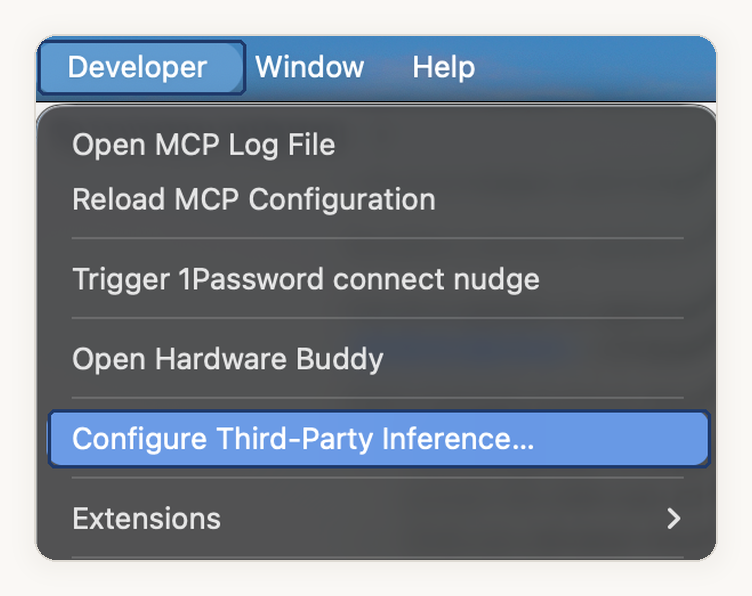
Open the Developer menu, and click Configure Third-Party Inference, which means using another company's model. A settings window opens on its Connection page.
-
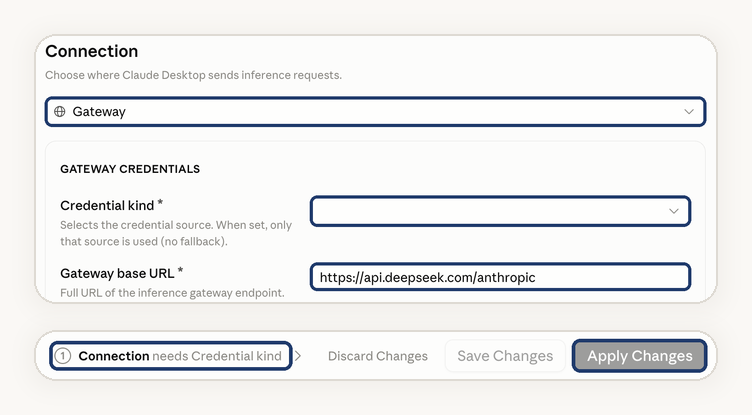
In the first box on the Connection page, choose Gateway, a service that passes your messages on to a model. Below it is a section called Gateway credentials.
-
Fill in the four boxes in Gateway credentials. Find each box by its name:
- Credential kind: open it, and choose Static API key.35
- Gateway base URL: paste your company's address. For DeepSeek, paste
https://api.deepseek.com/anthropic.28 For OpenRouter, pastehttps://openrouter.ai/api.29 - Gateway API key: paste your API key. An OpenRouter key starts with
sk-or-v1-. - Gateway auth scheme: this sets how the app sends your key. For DeepSeek, choose x-api-key.28 For OpenRouter, choose Bearer.29
Leave every other box as it is, including any sign-in (OIDC) boxes. You do not need the other pages on the left.
-
Look at the bar at the bottom of the window. If it names a box, as in "Connection needs Credential kind", that box is still empty, so fill it in. Then click Apply Changes. The app restarts.34
-
On the start screen, choose Continue with Gateway. If you do not see it, quit the app fully, not just its window, and open it again.29
-
Pick a model from the model menu, and send a short message, such as "Hello".


With DeepSeek, the model menu may show Claude's names. Then Opus means DeepSeek V4 Pro, and Sonnet and Haiku mean DeepSeek Flash.28
To change a setting later, such as a wrong key, turn on Developer Mode again, as in step 2. The Developer menu goes away when the app restarts into this mode, and after you turn it on a second time, it stays.34
How do you set it up with Ollama?
Ollama connects the Claude app for you, on a Mac only. Ollama says Windows support is coming.33
- In Ollama, download a model to your Mac. For a cloud model instead, sign in to Ollama and turn on cloud models. Some cloud models need a paid Ollama plan.
- In Ollama, open Apps, and choose Connect Claude.
- Follow the prompts. They install Claude if you need it, and ask you to restart it.
- To change the model later, open Ollama's Settings, then Apps, choose your models, and click Restart Claude.
To check it worked, send one short message, then find its charge on the company's usage page. To go back, choose the Anthropic sign-in on the start screen.24 With Ollama, disconnect Claude in Ollama's Apps, or quit Ollama.33
Check yourself
Question 1 / 5
0 answered
You close the Claude app while a task in the cloud is still running. What happens to the task?
Sources
- Install Claude Desktop, Claude Help Center.↑↑2
- Claude Cowork and chat are one Claude, Claude Help Center.↑↑2↑3
- Downloading the ChatGPT macOS app, OpenAI Help Center.↑
- Using the ChatGPT Windows app, OpenAI Help Center.↑↑2
- ChatGPT Work and Codex, OpenAI Help Center.↑↑2↑3
- Permissions, ChatGPT Learn.↑↑2↑3↑4
- Get started with ChatGPT Work, ChatGPT Learn.↑↑2
- ChatGPT desktop app, ChatGPT Learn.↑
- Get started with Claude Cowork, Claude Help Center.↑
- Use the built-in browser in Claude Cowork, Claude Help Center.↑
- Using the built-in browser in the ChatGPT desktop app, OpenAI Help Center.↑↑2
- How do I change my model improvement privacy settings?, Anthropic Privacy Center.↑
- Data controls in ChatGPT, OpenAI Help Center.↑
- Use Claude Cowork on web, desktop, and mobile, Claude Help Center.↑
- Use Claude Cowork safely, Claude Help Center.↑
- Navigating the Claude desktop app, Anthropic Academy.↑
- Use the built-in browser in Claude Cowork, Claude Help Center, accessed 31 October 2026.↑
- Download Claude, Claude.↑
- Get started with Claude Cowork, Claude Help Center, accessed 31 October 2026.↑
- Plans and Pricing, ChatGPT.↑↑2
- Understanding ChatGPT and Codex usage limits, OpenAI Help Center.↑
- Moving to the new ChatGPT desktop app, OpenAI Help Center.↑
- Claude Code Desktop, Claude Code documentation.↑↑2
- Installation and setup, Claude Desktop on third-party platforms, Claude documentation.↑↑2↑3
- Features, Claude Desktop on third-party platforms, Claude documentation.↑↑2
- Pricing, Ollama.↑
- Overview, Claude Desktop on third-party platforms, Claude documentation.↑↑2
- Anthropic API, DeepSeek API documentation.↑↑2↑3↑4
- Claude Desktop integration, OpenRouter documentation.↑↑2↑3↑4
- Provider selection, OpenRouter documentation.↑
- Your first API call, DeepSeek API documentation.↑
- Models & Pricing, DeepSeek API documentation.↑
- Use Ollama models in Claude on macOS, Ollama documentation.↑↑2↑3
- In-app configuration, Claude Desktop on third-party platforms, Claude documentation.↑↑2↑3
- Deploy Claude Desktop on 3P with an LLM gateway, Claude documentation.↑
- Owner
- Panaversity